

Region 0 DVD: What & Why You Can’t Play on New DVD Players!

Posted by Paula Pailaga to Rip DVD Jun 11, 2026
Region 0 DVDs are discs free from region codes and are said to be playable across different DVD players. However, you might experience a scenario where you can’t suddenly play it on your new model player. If you are wondering why and what Region 0 DVD is, continue reading this post! This post features what is Region 0 DVD and why you can’t play on all DVD players now. So, without further ado, start diving below!
Guide List
What Is a Region 0 DVD? Why Region 0 DVDs Sometimes Won't Play The Best Way to Play Region 0 DVDs on Windows/Mac Recommended Region 0 DVDs for You to Watch FAQs about Region 0 DVDWhat Is a Region 0 DVD?
The DVD region code system divides the world into 8 regions. A player sold in the US is set to Region 1. One sold in Europe is set to Region 2. They won't play each other's discs by default.
Region 0 is also labeled "ALL" on the disc case. It means the disc carries no region restriction. According to the DVD specification, any player in any country should be able to play it.
The region code is printed on the back of most disc cases as a globe icon with a number inside. If it says 0, or ALL, or shows a globe without a number, it's region-free.
Why Region 0 DVDs Sometimes Won't Play
1. PAL vs NTSC mismatch. Region 0 only removes regional restrictions. It does not change the video format. DVDs come in NTSC (used in North America, Japan) and PAL (used in Europe, Australia, most of Asia). A PAL disc on a US TV setup can show a black-and-white picture or no picture at all. Your player needs to support both, or your TV needs to handle both signal types.
2. Disc pressing error. Some discs labeled Region 0 were authored incorrectly and contain conflicting region flags. This is a disc manufacturing issue, not a player issue.
3. Player firmware or lens issues. Older players sometimes struggle with certain disc types regardless of region. A dirty laser lens causes more playback failures than region codes do.
4. The disc is Region 0 but copy-protected in other ways. CSS (Content Scramble System) encryption is separate from region coding. Some Region 0 discs still have CSS protection, which requires a licensed player or software to decrypt. VLC handles this on older RPC-1 drives but not always on newer RPC-2 hardware drives.
The Best Way to Play Region 0 DVDs on Windows/Mac
That’s it! Those are brief answers and explanations about what is Region 0 DVD and why you can’t play it on all players today. Now, if you are wondering whether you can play Region 0 DVD on your Windows/Mac, well, you can make that happen by using the professional 4Easysoft DVD Ripper tool! Using this tool, you can digitalize all Region 0 DVD videos by converting them into a specific format! This tool can rip DVD to 600+ formats, including video formats such as MP4, MKV, AVI, MOV, etc. Moreover, this tool is infused with GPU acceleration technology that rips Region 0 DVD contents at 60X the speed! So, with this tool, you can play region 0 DVD to your Windows/Mac as a video file!
Offer options to compress the Region 0 DVD video size but preserve its original quality.
Support option to rip and convert Region 0 DVD to specific device presets.
Infused with a multi-core processor that provides a smooth and flawless ripping process.
Provide features to modify the Region 0 DVD video: add effects, filters, subtitles, etc.
100% Secure
100% Secure
How to Rip Region 0 DVD Using 4Easysoft DVD Ripper Tool:
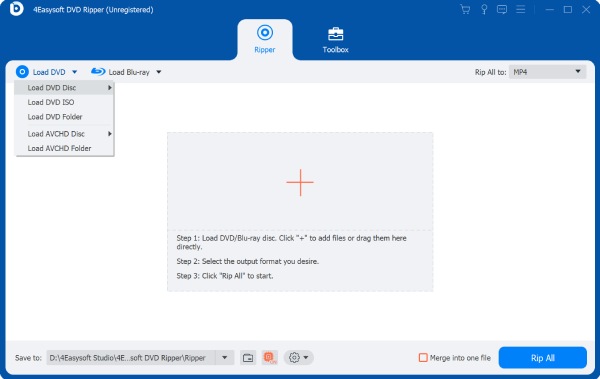
Step 1Download and install the 4Easysoft DVD Ripper tool on your Windows or Mac computer. After that, launch the tool, insert the "Region 0 DVD" on your computer’s disk driver, and click the "Load DVD" dropdown. Then, select the "Load DVD Disc" option.
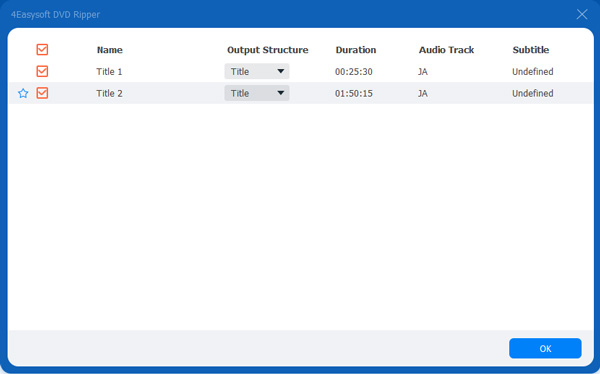
Step 2Next, tick the "Full Title List" button, and on the new window, select all the "titles" you wish to convert/rip to a digital format by clicking their corresponding "checkbox" button. After that, once you select all of them, tick the "OK" button.
Step 3Then, click the "Rip to Video/Audio" button and tick the "Rip All to:" dropdown. After that, click the "Video" tab and select the "video output format" you wish to rip/convert the video.
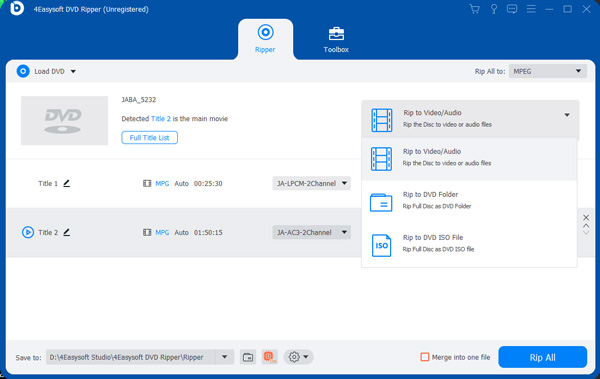
Note: This post recommends you convert Region 0 DVD video content to MPEG Lossless format. This format will keep the original quality of the video content and its audio tracks.
Step 4Once you finish the above setups, tick the "Rip All" button at the lower right corner of the tool’s interface and wait for the tool to initiate the Region 0 DVD video content ripping/converting process.
Recommended Region 0 DVDs for You to Watch
There you go! That is the best way to play Region 0 DVD on Windows/Mac! Now, if the solution above (digitalizing Region 0 DVD) makes you want to look for Region 0 DVDs to watch, here are the best recommendations for you.
◆ Drunken Angel (2005)
◆ Sword of Vengeance (2003)
◆ Azumi (2004)
◆ Azumi 2: Death or Love (2005)
◆ Baby Cart at the River Styx (2003)
◆ Virus (2002)
FAQs about Region 0 DVD
-
How will I know if a DVD has a Region 0 DVD?
To identify whether your DVD is coded as Region 0, you can check whether Region 0 is printed on the actual DVD. You can check the case's front or back if you can’t see any label on its DVD’s body. You can also use a third-party tool to identify DVD’s region code.
-
Do Region 1 DVD players play Region 0 DVD?
Yes, you can! You can play a Region 0 DVD on your Region 1 DVD player. However, if you are using a new DVD player and purchased a DVD with region 0 during these days, you might encounter an issue due to Regional Coding Enhancement (RCE).
-
What are the DVD players that can play Region 0 DVD?
The DVD players you can use to play Region 0 DVDs are LONPOO LP-099, Sony BDP-S6700, Panasonic DVD-S700, Samsung DVD-E360, and LG DP132 DVD players. All of these DVD players are region-free.
Conclusion
That’s it! Those are the brief explanations about what Region 0 DVD is and why you can’t play it on all DVD players today. After exploring this post, you are now aware of what a Region 0 DVD is and the reason why this DVD can’t be played on most of the latest DVD players. If you are wondering if there’s a way you can play Region 0 DVD on your Windows or Mac computer, well, you can, and you can utilize the 4Easysoft DVD Ripper tool! With this tool, you can digitalize Region 0 DVD’s video content and play it on your computer! Visit this tool’s website now.
100% Secure
100% Secure
